
Teardown FPS Boost Guide: How to Optimize Performance and Stop Lag on Any PC
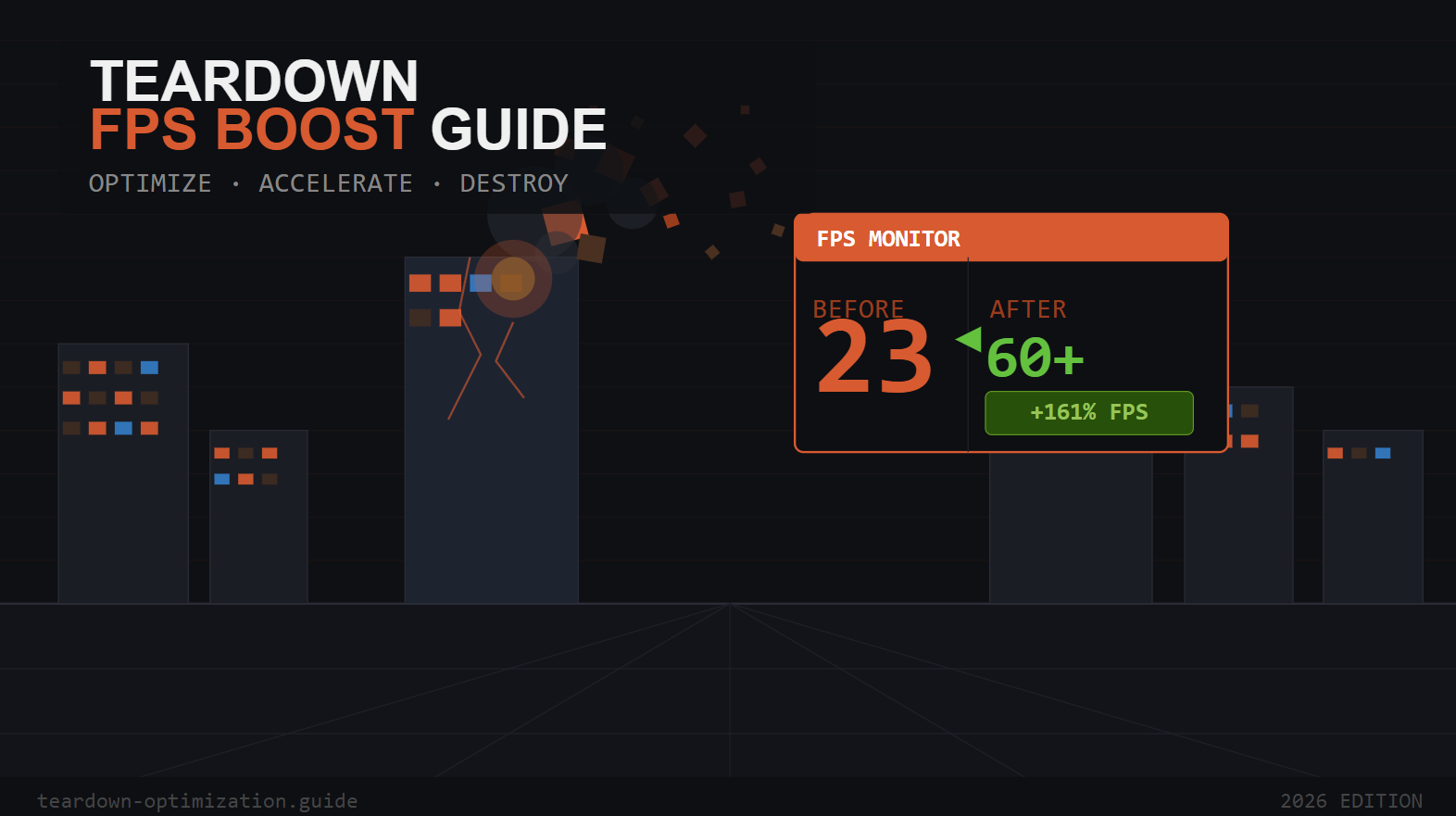
Teardown is a physically accurate voxel-based game that literally destroys your CPU. Due to the unique architecture of the engine, even powerful PCs can suffer from FPS drops. In this guide you will find all working optimization methods: from graphics settings to system tweaks and editing the game config.
Why Teardown Is So Demanding on Hardware
Teardown uses a custom voxel engine based on ray tracing through a voxel grid. Every object in the game is physically deformable, and the engine recalculates lighting and shadows in real time for every destroyed fragment. This explains why the game loads the CPU more heavily than the GPU — especially in scenes with a large amount of destruction.
In addition, Teardown is single-threaded in critical physics calculation sections. This means that a Core i9 with 24 cores may perform worse than an older but higher-clocked Core i7 in this particular game.
Teardown Optimization: How to Increase FPS
Optimal Graphics Settings in the Game
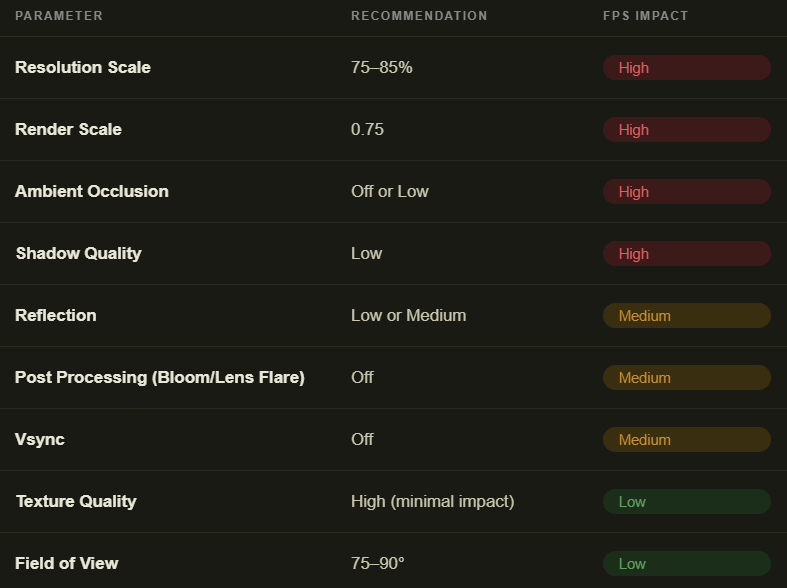
Below is a description of all graphics parameters with recommendations for each one. In the screenshot, the "Impact on FPS" column shows how heavily each setting affects performance. The following parameters are the most important:
- Resolution Scale. Has a high impact on FPS; it is recommended to set it to 75–85%
- Render Scale. High impact; optimal value is 0.75
- Ambient Occlusion. Can significantly reduce FPS, so set it to low or disable it completely
- Shadow Quality. While shadows look better visually, it is recommended to reduce them to the minimum
- Reflection. Either medium or low settings
- VSync — disable completely
- Post Processing — disable as well
- Texture Quality. Many players think this is the main parameter, but in the case of Teardown it is not. Textures can remain on high resolution
- Field of View. Also has little impact; you can set it to 75–90 degrees
Manual Editing of the Game Config
A more advanced optimization method that is done outside the game in the file C:\Users\[Your name]\Documents\Teardown\options.ini. Locate the file and open it with any text editor. Find and edit the following settings:
- renderscale = 0.75
- shadowres = 512
- ssao = false
- bloom = false
- motionblur = false
- vsync = false
Now save the file.
Optimizing Windows and Drivers
You can skip this section if you have previously optimized your Windows and drivers for gaming. If not, it is recommended to follow these steps to optimize the operating system for games (some of these actions are useful for all games, not just Teardown).
- Power Mode — Power Settings → "High performance". This prevents the system from lowering CPU frequency while idle.
- Process Priority — Task Manager → "Details" tab → right-click Teardown.exe → "Set priority" → "High". Do not use "Realtime" — it may cause system freezes.
- Update GPU drivers — NVIDIA: GeForce Experience. AMD: Adrenalin Software. Outdated drivers can reduce performance by 10–15%.
- Disable Game Bar and DVR — Windows Settings → Gaming → Xbox Game Bar → Off.
- Hardware-accelerated GPU scheduling (HAGS) — Settings → System → Display → Graphics → Enable. Helps on NVIDIA RTX and AMD RX 5000+ GPUs.
- Close background applications — browsers, Discord with video, streaming clients.
- Install the game on an SSD — speeds up loading and reduces micro-stutters.
NVIDIA Control Panel settings (add Teardown.exe):
Several settings should also be adjusted in the NVIDIA Control Panel (right-click the desktop and select "NVIDIA Control Panel").
- Power management mode → "Prefer maximum performance"
- Vertical sync → Off
- NVIDIA Reflex Low Latency → On + Boost
- Texture filtering — Quality → "Performance"
These settings are usually enough to achieve good performance.
Teardown and the CPU: Important Details
Since the engine heavily loads a single CPU core, processor frequency is more important than the number of cores. Enable Turbo Boost / Precision Boost in the BIOS and make sure your cooling system is sufficient — thermal throttling due to overheating can reduce performance by up to 20%.
Optimization Depending on the Map and Situation
Several additional nuances to keep in mind:
- Large explosions and chain destruction can cause sudden FPS drops — this is normal.
- Reducing Shadow Quality and SSAO helps maintain stability.
- Mods with large maps may be less optimized than vanilla levels.
- If a mod runs poorly, the issue may be with the mod itself.
- The number of vehicles on a level significantly affects CPU load.
Final checklist of steps that can increase FPS in the game by about 20–50% on average (depending on hardware and other factors):
- Lower Render Scale to 0.75 in settings or options.ini
- Disable SSAO and Bloom
- Set Shadow Quality to Low, shadowres = 512
- Disable VSync both in the game and in the GPU control panel
- Enable the "High performance" power mode
- Set high priority for Teardown.exe
- Close background applications
- Update GPU drivers
- Enable XMP/EXPO in BIOS
- Make sure the CPU is not throttling due to overheating
How to Get All Achievements in Teardown — Complete Guide
- 655
- 0
- 30 mar 2026
How to Enable Multiplayer in Teardown – Step-by-Step Guide
- 897
- 0
- 13 feb 2026
Comments 0
Rules for writing comments. For non-compliance - ban!
- Use of profanity (mat) in messages
- Communication is not on the topic of the material
- Any insults of other participants, including the author of the material
- Writing messages in whole or in part in CAPITAL letters (Caps Lock)
- Expressing your opinion without supporting it with arguments
- The use of links to third-party sites, or the use of images/videos/other content containing the aforementioned links
Messages that violate these rules will be deleted, and malicious violators - deprived of the ability to add comments on the site!