
How to improve performance in Counter Strike 2: best graphics settings
12 sep 2023 at 11:18
CS2 has finally entered the open beta testing phase (well, almost open), and it turns out that the optimization in it is lacking in some areas. Players are complaining about freezes, frame rate drops from a hypothetical 300 FPS to 100 FPS, and so on.
But most of these problems can be fixed by correctly configuring the game. How to do it is explained in the article below.
Best Graphics Settings
After opening the graphics settings menu, two screens will appear.
First one:
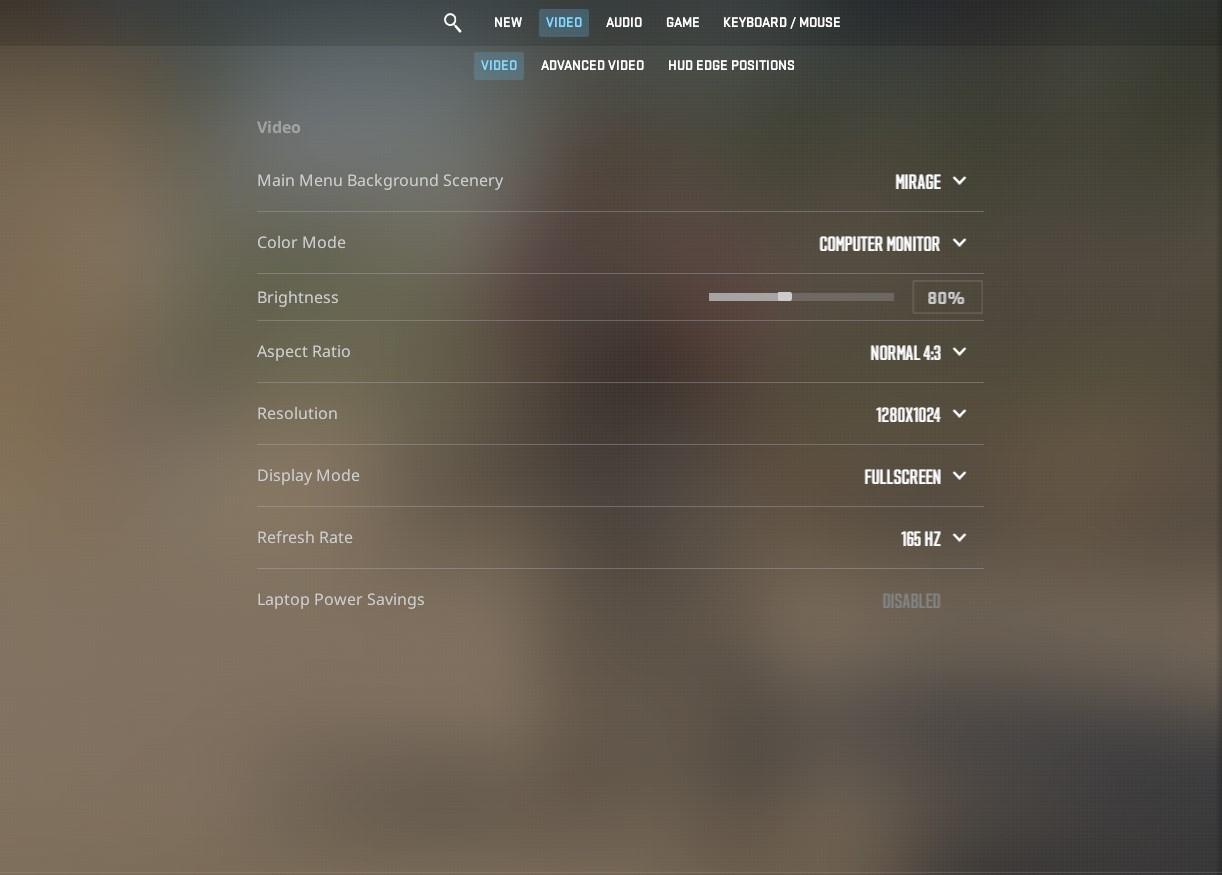
Second one:

Let's go through each setting one by one.
Basic Settings
- Main Menu Background Scenery – simply changes the background in the main menu. Doesn't affect performance.
- Color Mode – changes the display type. If playing on a TV, choose Television; if on a monitor, choose Computer Monitor.
- Brightness – adjusts the brightness. Change it according to your preference.
- Aspect Ratio – one of the most important but controversial settings. Many esports players use 4:3 because it makes character models wider and easier to hit. However, 16:9 provides a higher field of view. Avoid setting it to 16:10 as it may cause artifacts.
- Resolution – a continuation of the previous setting. The "golden" standard today is 4:3 and 1280x960 resolution. Most professionals play on this. However, you can set it to 1280x1024 for a faster-feeling game. For a 16:9 format, leave it at 1920x1080.
- Display Mode – controls how the game is displayed (windowed, borderless windowed, or fullscreen). Always choose Fullscreen to avoid visual glitches and freezes.
- Refresh Rate – a setting that depends on your monitor. The higher the refresh rate, the better, so set it to the maximum available. It will show more movements from models. This video clearly demonstrates the difference between different refresh rates:
- Laptop Power Savings – a setting for laptops. It's not recommended to enable it because it will significantly decrease game performance.
Additional Settings
- Boost Player Contrast – has a medium impact on performance but provides an advantage in shootouts in dark areas (e.g., the upper tunnel on Dust II). Enable it according to your preference.
- Wait for Vertical Sync – turning it off removes input lag (which feels like high ping but affects controls). However, it may lead to artifacts and screen tearing. Experiment with this setting to find your preferred balance.
- Multisampling Anti-Aliasing Mode – a setting that smooths out jagged edges of textures. It doesn't have a significant impact on performance but significantly improves overall image quality. Set it between 4X MSAA and 8X MSAA depending on your GPU's power. For a GTX 1070, you can use 8X, and for a GTX 1060, 4X is sufficient. Setting it lower is not recommended as it won't make a noticeable difference compared to turning it off completely.
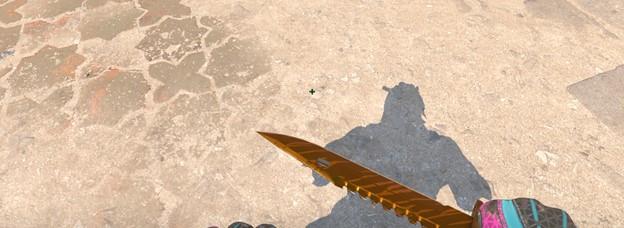
- Global Shadow Quality – set it to High or at least Medium. Yes, this setting will consume a lot of frames, around 30-60, but it's a case where sacrificing performance is worth it. On low settings, you won't see many shadows (e.g., weapons or props on the map). The remaining shadows will look blocky. To understand the seriousness of the situation, look at the screenshots below. The first one has shadows set to a minimum, the second to a maximum. Notice the difference?

- Model / Texture Detail – almost doesn't affect FPS, so you can confidently set it to Medium or even High for better-looking skins. However, it's worth mentioning that this setting affects VRAM. If you have less than 4 GB of VRAM, it's better to leave it on the medium preset.
- Shader Detail – improves overall image quality. It doesn't significantly affect the average frame rate but reduces the 1% and 0.1% frame rate lows. This means that if you experience stutters, they will feel much worse.
- Particle Detail – affects particle quality: blood splatters, bullet impact marks, Molotov cocktail fire, and smoke. On the low preset, it's easier to spot enemies through fire or dissipating smoke, and it slightly boosts FPS, although only by a few frames.
- Ambient Occlusion – the model of ambient shading. It significantly affects performance and generates distracting shadows while reducing overall brightness. Verdict: Disable it completely.
- High Dynamic Range – worth experimenting with if your monitor supports HDR. On the Performance setting, it reduces video memory consumption by approximately 200-300 MB.
- FidelityFX Super – renders the game at a lower resolution but upscales it on the output. It greatly increases FPS (in some cases, the increase can be twofold), but it blurs the image even on Ultra Quality. We recommend turning it off completely.
- NVIDIA Reflex Low Latency – reduces the overall system latency, so if you have an NVIDIA card, we recommend choosing Enabled + Boost. However, some players report that turning off this option improves game smoothness, so it's worth experimenting with this setting.
See also
Counter-Strike 2
Hot
How to create binds in Counter-Strike 2: the most useful binds
- 1784
- 0
- 26 oct 2023
Counter-Strike 2
Hot
How to switch back to CS:GO after the release of Counter-Strike 2
- 2018
- 0
- 26 oct 2023
Comments 0
Rules for writing comments. For non-compliance - ban!
- Use of profanity (mat) in messages
- Communication is not on the topic of the material
- Any insults of other participants, including the author of the material
- Writing messages in whole or in part in CAPITAL letters (Caps Lock)
- Expressing your opinion without supporting it with arguments
- The use of links to third-party sites, or the use of images/videos/other content containing the aforementioned links
Messages that violate these rules will be deleted, and malicious violators - deprived of the ability to add comments on the site!